I spent some time setting up Org agenda to (most of) my liking yesterday, so I'll write about some of what I learned doing so. This article isn't a guide to actually using Org agenda, so I'll leave that up to you.
Table of Contents
Have your tasks show up in the agenda view
I'm pretty sure you can just point it to an entire directory of org notes but since I keep all of my tasks in one file only, I'll point it to that file.
1
2
3
(after! org
    (setq org-agenda-file '("~/Documents/org/tasks")
))
Add your own TODO keywords
In the same section as above, add the following with your own keywords:
1
2
3
4
5
6
7
8
9
org-todo-keywords        ; This overwrites the default Doom org-todo-keywords
    '((sequence
        "TODO(t)"           ; A task that is ready to be tackled
        "DOING(d)"          ; A task that is ongoing
        "WRITE(r)"          ; A writing task
        "WAIT(w)"           ; Something is holding up this task
        "|"                 ; The pipe necessary to separate "active" states and "inactive" states
        "DONE(x)"           ; Task has been completed
        "CANCELLED(c)" ))   ; Task has been cancelled
The keywords here are just what I'm currently using, so change them to your own.
Just in case you're curious as to how this should look now, the changes we've made up till now are as such:
 1
 2
 3
 4
 5
 6
 7
 8
 9
10
11
12
(after! org
      (setq org-agenda-file '("~/Documents/org/tasks")
            org-todo-keywords        ; This overwrites the default Doom org-todo-keywords
                '((sequence
                    "TODO(t)"           ; A task that is ready to be tackled
                    "DOING(d)"          ; A task that is ongoing
                    "WRITE(r)"          ; A writing task
                    "WAIT(w)"           ; Something is holding up this task
                    "|"                 ; The pipe necessary to separate "active" states and "inactive" states
                    "DONE(x)"           ; Task has been completed
                    "CANCELLED(c)" ))   ; Task has been cancelled
))
Set custom tags for your tasks
I use tags more like you'd use lists in a traditional todo application (which I'm more used to). But if you have a different usage for these then feel free to use that instead.
On a new line, add the following:
1
2
3
4
5
6
7
8
(setq org-tag-alist
      '(
        ("u")
        ("pb") ;; personal blog
        ("ab") ;; ai blog
        ("g")
        ("p")
        ))
These are the tags I'm currently using.
Using these tags
Whenever you add a new task, you can add tags to the end of the line as such:
1
\* TODO Buy milk :tag1:tag2:tag3:
We'll make use of these tags in the next section.
Set a custom Org agenda view
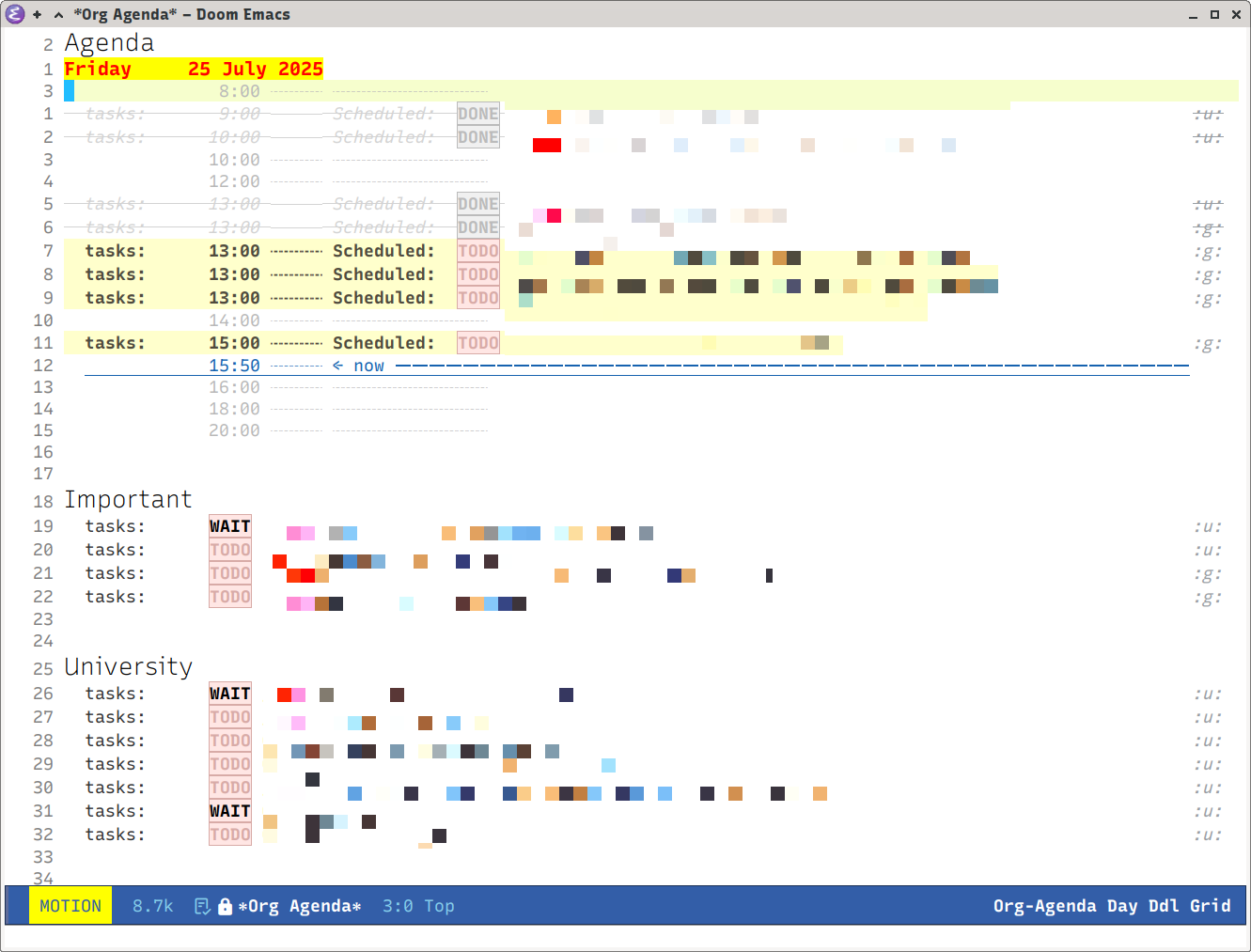 My org-agenda view
The Org agenda view I'm using here lists the agenda, followed by each of your tags and then ends with a list of all of your tasks. If you'd like your Org agenda to look like this, then you can use the following configuration. However, be sure to replace each of the tags sections with your own tags.
 1
 2
 3
 4
 5
 6
 7
 8
 9
10
11
12
13
14
15
16
17
18
19
20
21
22
23
24
(setq org-agenda-custom-commands
      '(("1" "View tasks with Weekly agenda"
         ((agenda ""
                  ((org-agenda-overriding-header "Agenda")))
          (tags "PRIORITY=\"A\""
                ((org-agenda-skip-function '(org-agenda-skip-entry-if 'todo 'done))
                 (org-agenda-overriding-header "Important")))
          (tags "u"
                ((org-agenda-skip-function '(org-agenda-skip-entry-if 'todo 'done))
                 (org-agenda-overriding-header "University")))
          (tags "g"
                ((org-agenda-skip-function '(org-agenda-skip-entry-if 'todo 'done))
                 (org-agenda-overriding-header "General Tasks")))
          (tags "p"
                ((org-agenda-skip-function '(org-agenda-skip-entry-if 'todo 'done))
                 (org-agenda-overriding-header "Projects")))
          (tags "pb"
                ((org-agenda-skip-function '(org-agenda-skip-entry-if 'todo 'done))
                 (org-agenda-overriding-header "Personal Blog")))
          (tags "ab"
                ((org-agenda-skip-function '(org-agenda-skip-entry-if 'todo 'done))
                 (org-agenda-overriding-header "AI Blog")))

          (alltodo "")))))
Show org-agenda-day-view by default and start it from today
By default, you'll probably get a 10 day Org agenda view. I don't like this as default behaviour, so I've changed it show today's agenda.
1
2
(setq org-agenda-span 1)
(setq org-agenda-start-day "+0d")
Adjust some of the fonts in the Org agenda view
I use the Leuven theme which includes some lovely Org mode styling out of the box but it does clutter the Org agenda view a bit because of some odd design choices. I have a fix for some of them (which you saw in the screenshot above), that includes some extra formatting for better clarity:
 1
 2
 3
 4
 5
 6
 7
 8
 9
10
(defun org-agenda-font-adjustment ()
  (set-face-attribute 'org-agenda-date nil :height 135)
  (set-face-attribute 'org-agenda-date-weekend nil :height 135)
  (set-face-attribute 'org-agenda-date-today nil :height 135 :background "yellow" :foreground "red")
  (set-face-attribute 'org-agenda-structure nil :height 360 :weight 'light :foreground "black")
  )
(add-hook 'org-agenda-mode-hook #'org-agenda-font-adjustment)

;;;; REMOVE SEPARATOR IN ORG AGENDA VIEW
(setq org-agenda-block-separator " ")
Add relative line numbers to Org agenda view
I love relative line numbers for jumping around a file, and that's no different in the Org agenda view.
1
(add-hook 'org-agenda-mode-hook (lambda () (display-line-numbers-mode 'relative)) )
Add a timestamp when you complete a task
Every time you complete a task, the time you completed the task will be logged.
1
(setq org-log-done 'time)
Set up Org capture
This is a really cool feature that allows you to press a keybinding from wherever you are in Emacs and send a note to a file according to a specific template. For the time being, I find this useful only for quickly adding tasks, so I made a small modification to the default TODO template:
1
2
3
4
5
6
7
(setq org-capture-templates
      '(
        ("t" "New TODO"
         entry (file "~/Documents/org/tasks/tasks.org")
         "* TODO %?\n"
         :empty-lines 0)
      ))
Strikethrough completed tasks
This just adds a bit more visual clarity w.r.t. which tasks are completed and which aren't. I've also changed the colour of these completed tasks to light gray and italicised them:
1
(set-face-attribute 'org-agenda-done nil :strike-through t :foreground "lightgray" :italic t)
Press [Tab] to open a task in a new split from the Org agenda view
If you place your cursor on a task and then press [Tab], you can open that task in a split with the following:
1
2
(add-hook 'org-agenda-mode-hook
          (lambda () (local-set-key [tab] 'org-agenda-tree-to-indirect-buffer)))
Using the Org agenda view
I actually just recently found out that with such a setup, you never need to open up your actual tasks.org file unless you want to reschedule a task (I'll find a fix for that soon™). You can mark tasks as complete, schedule them, change the TODO keyword and so on and so forth from the Org agenda view using your keyboard shortcuts (Doom Emacs comes with these preconfigured so that's what I'm (currently) using). Then, to add tasks, I'll use Org capture.